ROCCAT Ryos MK Glow - Instrukcja obsługi
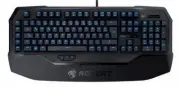
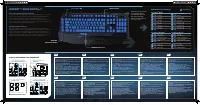
Ten szybki przewodnik obejmuje zaawansowane funkcje i podstawy konfiguracji klawiatury gamingowej ROCCAT Ryos MK Glow. Dokument podkreśla jej premium design – taki jak odporne na zabrudzenia błyszczące wykończenia i przełączniki Cherry MX – oraz wyjaśnia, jak wykorzystać wbudowane funkcje, takie jak EASY-SHIFT[+], który umożliwia duplikowanie klawiszy, i Macro Live! do nagrywania makr. Przedstawia również wymagania systemowe i specyfikacje techniczne, w tym łączność przez ROCCAT Talk dla bezproblemowej komunikacji między urządzeniami. Kluczowe tematy operacyjne obejmują przepływy pracy przy nagrywaniu makr, standardy zgodności i konfiguracje sprzętowe.
h
FR
PL
RU
SE
1. Für einen ergonomischeren Stand klappe die Füße an der
Unterseite der Tastatur aus.
2. Verbinde den USB-Stecker der ROCCAT™ Ryos MK Glow
mit einer freien USB-Schnittstelle.
3. Starte deinen Computer und stelle eine Verbindung mit
dem Internet her.
4. Gebe in die Adresszeile deines Webbrowsers die folgende
URL ein „www.roccat.org/support“ und drücke Enter.
5. Klicke in der linken Navigationsleiste auf den Punkt
„ROCCAT™ Ryos MK Glow“. Lade dir auf der sich öff-
nenden Seite die neueste Treiber-Software herunter.
6. Starte die Treiber-Installation und folge bitte den weiteren
Anweisungen auf dem Bildschirm.
1. Til ergonomisk opstilling klappes fødderne på tastaturets
bund ud.
2. Forbind ROCCAT™ Ryos MK Glow’s USB-stik med et ledigt
USB-interface.
3. Start din computer og forbind den med Internettet.
4. Indtast følgende URL i adresselinjen af din webbrowser
„www.roccat.org/support“ og tryk så Enter.
5. Klik i venstre navigantionslinje på punkt
„ROCCAT™ Ryos MK Glow“. Frau den åbnede side
overfører du den nyeste driversoftware.
6. Start driver-installationen og følg anvisningerne på
billedskærmen.
1. For a more ergonomic position, fold out the stands on the
base of the keyboard.
2. Plug the ROCCAT™ Ryos MK Glow’s USB connector into
a free USB port.
3. Boot your computer and connect to the internet.
4. Navigate to “www.roccat.org/support” in your web
browser.
5. In the navigation bar on the left, click on
“ROCCAT™ Ryos MK Glow” and download the latest
driver from the webpage that opens.
6. Start the driver installation process and follow the on-
screen instructions.
1. Para un equilibrio más ergonómico, saca las patas que
están debajo del teclado.
2. Enchufa el conector USB del ROCCAT™ Ryos MK Glow a
un puerto libre USB.
3. Inicia tu ordenador y establece la conexión de Internet.
4. Escribe en tu navegador Web la siguiente URL:
www.roccat.org/support y pulsa Enter.
5. En la barra izquierda de navegación haz clic en el
punto “ROCCAT™ Ryos MK Glow”. En la página que se
abre a continuación descárga el software de controlador
más actualizado.
6. Inicia la instalación del controlador y sigue las instruccio-
nes que aparecen en pantalla.
1. Käännä näppäimistön alla olevat jalat ulos ergonomista
asentoa varten.
2. Liitä ROCCAT™ Ryos MK Glow :n USB-pistoke vapaaseen
USB-liitäntään.
3. Käynnistä tietokoneesi ja luo Internet-yhteys.
4. Kirjoita verkkoselaimesi osoiteriville seuraava URL-osoite
„www.roccat.org/support“ ja paina Enter.
5. Napsauta vasemmassa navigaatiopalkissa kohtaa
„ROCCAT™ Ryos MK Glow“. Lataa avautuvalta sivulta
uusin ajuriohjelmisto.
6. Käynnistä ajurin asennus ja noudata näytöllä näkyviä
lisäohjeita.
DE
DK
EN
ES
FI
TR
1. Déplie les pieds sur la face inférieure du clavier pour une
plus grande ergonomie.
2. Relie la fi che USB de la souris ROCCAT™ Ryos MK Glow
à une prise USB libre.
3. Démarre ton ordinateur et connecte-toi à Internet.
4. Entre dans la barre d’adresse de ton navigateur l’URL
« www.roccat.org/support » et appuie sur Enter.
5. Clique dans le menu de navigation de gauche sur
« ROCCAT™ Ryos MK Glow ». Télécharge la dernière
version du pilote sur la page qui s’ouvre alors.
6. Lance l’installation du pilote et suis les instructions qui
s’affi chent à l’écran.
1.
Aby uzyskać pozycję ergonomiczną, rozłóż nóżki po
spodniej stronie klawiatury.
2.
Podłącz wtyk USB
ROCCAT™ Ryos MK Glow
do wolnego
złącza USB.
3.
Uruchom komputer i nawiąż połączenie z Internetem.
4.
W wierszu adresowym przeglądarki wpisz adres URL
„www.roccat.org/support“ i naciśnij Enter.
5.
W lewym pasku nawigacji kliknij punkt
„
ROCCAT™ Ryos MK Glow
“.
Z nowo otwartej strony pobierz najnowsze sterowniki.
6.
Rozpocznij instalację sterowników i postępuj zgodnie z
instrukcjami na ekranie.
1.
Для обеспечения эргономичного положения открой
ножки на нижней стороне клавиатуры.
2.
Соедини USB-штекер
ROCCAT™ Ryos MK Glow
со
свободным USB-портом.
3.
Запусти компьютер и выйди в интернет.
4.
Введи в адресной строке браузера адрес
„www.roccat.org/support“ и нажми Enter.
5.
Нажми на левой навигационной панели пункт
„
ROCCAT™ Ryos MK Glow
“. Загрузи с открывшейся
страницы самые последние драйвера.
6.
Запусти инсталляцию драйвера и следуй дальнейшим
указаниям на экране.
1. Fäll ut fötterna under tangentbordet så att det står i en
ergonomisk ställning.
2. Sätt ROCCAT™ Ryos MK Glow USB-kontakt i en ledig
USB-port.
3. Starta datorn och koppla upp dig på Internet.
4. Skriv in följande URL i adressfältet på din webbläsare:
www.roccat.org/support. Tryck på Enter.
5. Klicka på ROCCAT™ Ryos MK Glow i det vänstra
navigationsfältet. Ladda ner den senaste programvaran
med drivrutin på den sida som öppnas.
6. Starta installationen av drivrutin och följ anvisningarna
på skärmen.
1.
Ergonomik bir duruş için klavyenin altındaki ayakları
dışa katla.
2. ROCCAT™ Ryos MK Glow
USB fi şini boş bir USB girişine tak.
3.
Bilgisayarı başlat ve internete bağlan.
4.
Web tarayıcının adres satırına “www.roccat.org/support”
URL adresini gir ve Enter tuşuna bas.
5.
Sol navigasyon çubuğundaki “
ROCCAT™ Ryos MK Glow
”
üzerine tıkla. Açılan sayfadan en yeni sürücü yazılımını indir.
6.
Sürücü kurulumunu başlat ve ekrandaki diğer
talimatları takip et.
ANLEITUNG
INSTRUKTIONER
INSTRUCTIONS
INSTRUCCIONES
OHJEET
INSTRUCTIONS
INSTRUKCJA
ИНСТРУКЦИИ
INSTRUKTIONER
TALIMATLAR
ROCCAT™ EASY-SHIFT
[
+
]™
DUPLICATE YOUR KEYS WITH EASY-SHIFT[
+
]™
The innovative ROCCAT™ driver sof tware allows you to quickly and easily re-map
the primary key functions of virtually every key on the keyboard. Enabled by the
Easy-Shif t [+]™ key, you can also assign a secondary key function to those
keys – ef fectively doubling the number of keys you have at your disposal. Factor in
the fact that you can record and store on board over 500 macros, and you’ve got
an insanely customizable keyboard on your hands.
MASTERFUL MACRO CONTROLS
New enhanced Macro Live! technology makes in-game macro recording a joy.
Simply hold down the function key, hit the Macro Live! recording button, and let the
handy sound feedback tool talk you through the quick and easy recording process,
step by step. Thanks to the powerful 2 MB of fl ash memory, all of your macros are
saved onto the keyboard itself, not the driver – giving you the freedom to lay down
any orders without delay. And you won’t have to leave your game to do it.
HOW TO USE MACRO LIVE! RECORDING
START LIVE! RECORDING
ASSIGN A MACRO KEY
STOP LIVE! RECORDING
O
L
L
H
E
+
+
+
+
O
L
L
H
E
+
+
+
+
1
2
4
TYPE YOUR OWN MACRO
3
EXAMPLE: “HELLO”
EXAMPLE: M1
HOLD DOWN “FN” KEY AND PRESS “F 12”
HOLD DOWN “FN” KEY AND PRESS “F 12”
PLEASE NOTE:
DELAYS WILL ALSO BE RECORDED.
EASY-SHIFT[
+
]™ EXAMPLES:
Easy-Shift[+]
TM
WoW:
[+] +
1
= Mount up
[+] +
A
= Use hearthstone
[+] +
2
= Dismount
[+] +
S
= Autorun
[+] +
3
= Pet attack
[+] +
D
= Hotbar slot #1
[+] +
4
= Pet passive
[+] +
F
= Hotbar slot #2
[+] +
5
= Pet follow
[+] +
G
= Start timer
[+] +
Q
= Yell chat
[+] +
Z
= Your macro #1
[+] +
W
= World map
[+] +
X
= Your macro #2
[+] +
E
= Trade chat
[+] +
C
= Your macro #3
[+] +
R
= Raid chat
[+] +
V
= Your macro #4
[+] +
T
= Party chat
[+] +
B
= Your macro #5
Easy-Shift[+]
TM
Multimedia:
Easy-Shift[+]
TM
Browser:
[+] +
M1
= Play or pause
[+] +
M1
= New tab
[+] +
M2
= Stop playback
[+] +
M2
= New window
[+] +
M3
= Play the previous item
[+] +
M3
= Switch to previous tab
[+] +
M4
= Play the next item
[+] +
M4
= Switch to next tab
[+] +
M5
= Rewind
[+] +
M5
= Switch to full screen & back
[+] +
T1
= Volume up
[+] +
T1
= Page back
[+] +
T2
= Volume down
[+] +
T2
= Page forward
[+] +
T3
= Mute volume
[+] +
T3
= Minimize window
Double up your keys: program
a secondary key function
in the ROCCAT™ driver and
then enable it by holding
down the strategically-placed
Easy-Shift[
+
]™
key.
EASY-SHIFT[
+
]™
KEY
THUMBSTER KEYS (T1-T3)
ADDITIONAL
MACRO KEYS (M1-M5)
[+] = Easy-Shift[+]
TM
key
MACRO LIVE! KEY
"Ładowanie instrukcji" oznacza, że należy poczekać, aż plik się załaduje i będzie można go czytać online. Niektóre instrukcje są bardzo obszerne, a czas ich ładowania zależy od prędkości Twojego internetu.
Czy ta instrukcja była pomocna?
O tej instrukcji
- Marka
- ROCCAT
- Model
- Ryos MK Glow
- Typ dokumentu
- Instrukcja obsługi
- Kategoria
- Klawiatura
- Język(i)
- Niemiecki, Angielski, Hiszpański, Francuski, Polski, Rosyjski
- Strony
- 1
- Rozmiar pliku
- 2,4 MB
- Format


